










Introduction
Imagine orchestrating AI to manage product data or generate content effortlessly, all within a .NET app that integrates seamlessly with your favorite tools. At AI Mind Center, I use Semantic Kernel, a powerful SDK developed by Microsoft for .NET, Java, and Python, to streamline workflows like managing blog data. As one of the favorite SDKs in the market, Semantic Kernel offers full .NET support, unlike LangChain, which is Python-only. Whether you’re a developer building apps, a tester validating outputs, or a business analyst optimizing processes, this SDK simplifies AI integration. In this guide, I’ll show you how to set up Semantic Kernel with a .NET app to interact with AI, using my blog as a practical example. Perfect for tech enthusiasts, this post is your entry point to smarter AI workflows.
Why Semantic Kernel?
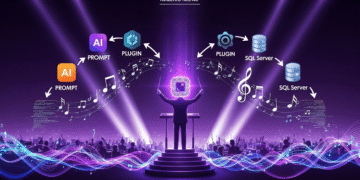
Semantic Kernel, developed by Microsoft, is an open-source SDK that orchestrates AI tasks, combining large language models (LLMs), plugins, and data sources for seamless automation. It’s ideal for tasks like generating blog outlines or managing product inventories, as I do for AI Mind Center. Key benefits include:
- Orchestration: Chains prompts and plugins for complex tasks.
- Plugins: Execute custom C# code, like querying data, during AI interactions.
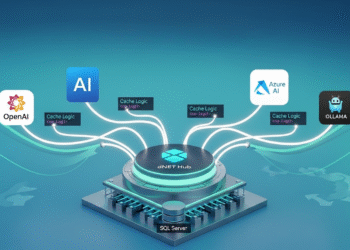
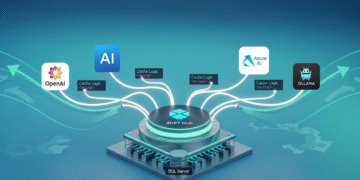
- Flexibility: Supports local and cloud AI (e.g., Ollama, OpenAI).
- .NET Integration: Leverages .NET’s features, like dependency injection.
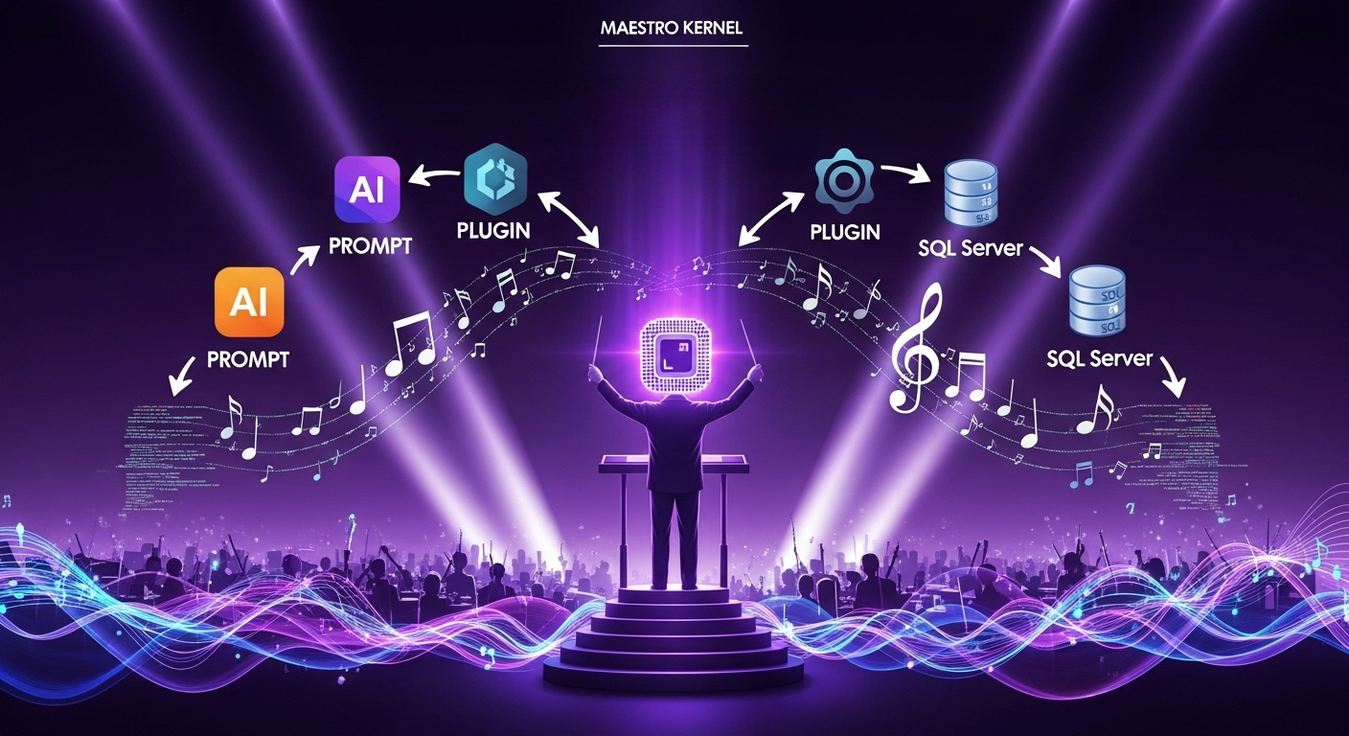
Think of Semantic Kernel as a conductor, directing AI and code to create harmonious workflows for any tech project.
Prerequisites
To get started with Semantic Kernel and .NET, you’ll need:
- Hardware: A machine with at least 8GB RAM and a decent CPU or GPU. I use an NVIDIA RTX-4060 with 8GB VRAM, which handles models like llama3.1:latest smoothly. Most modern laptops or desktops (e.g., 16GB RAM) work well.
- Operating System: Windows, Linux, or macOS. I tested this on Windows 11, but it’s cross-platform.
- .NET Environment: .NET 8 SDK, installed via Visual Studio or the .NET CLI.
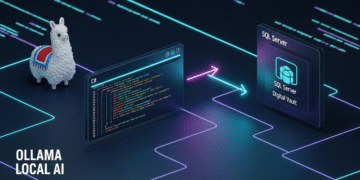
- Ollama: Download from ollama.com. Installation is simple—download the installer for your OS and run it, no complex configuration needed.
- NuGet Packages: Installed via the CLI or Visual Studio (detailed below).
- Optional Database: For advanced integrations, a database like SQL Server or PostgreSQL can store data (e.g., product records), but this guide starts with a simple plugin.
Verify Ollama installation by opening a terminal and typing:
ollamaThis shows Ollama’s command-line help. Check the API endpoint at http://localhost:11434 in your browser; it should display “Ollama is running”.
Step-by-Step: Setting Up Semantic Kernel
Here’s how I set up Semantic Kernel with .NET for AI Mind Center, keeping it simple for your first AI experience:
- Install Ollama
Download the installer from ollama.com and run it. The process is straightforward—follow the prompts, and Ollama sets up in minutes. Verify with:
ollamaCheck http://localhost:11434 in your browser to see “Ollama is running”.- Choose and Manage Models
I chose the llama3.1:latest model for its robust text capabilities, ideal for managing blog data. Explore other models at ollama.com/library. Manage models with:
-
- List Models: View installed models:
ollama list - Download Model: Pull llama3.1:latest:
ollama pull llama3.1:latest - Run Model: Start the model:
ollama run llama3.1
- List Models: View installed models:
- Create a .NET Project
In a terminal, create a .NET 8 console app named SemanticKernel:dotnet new console -o SemanticKernelThis creates a directory SemanticKernel with a basic console app. Add required NuGet packages:
dotnet add package Microsoft.SemanticKerneldotnet add package Microsoft.SemanticKernel.Connectors.Ollama --prereleasedotnet add package Microsoft.Extensions.Loggingdotnet add package Microsoft.Extensions.Logging.Console
- The logging packages (Microsoft.Extensions.Logging, Microsoft.Extensions.Logging.Console) let you observe request behavior, helping understand how Semantic Kernel processes interactions.
- Create the Product Plugin
Create a file Plugins/ProductPlugin.cs to simulate a product table:
using Microsoft.SemanticKernel;
using System.ComponentModel;

namespace SemanticKernel.Plugins;

public class ProductPlugin
{
    private readonly List<Product> _products =
        [
            new (1, "Playstation 5", true, 10),
            new (2, "Mouse Gamer", true, 8),
            new (3, "Keyboard Gamer", true, 1),
            new (4, "Monitor", true, 0),
            new (5, "Desktop", false, 5)
        ];

    [KernelFunction("get_products")]
    [Description("Get all products")]
    public async Task<List<Product>> GetAllProductsAsync()
    {
        await Task.Delay(1);
        return _products;
    }

    [KernelFunction("get_state")]
    [Description("Get the state of a product")]
    public async Task<Product?> GetStateAsync([Description("The ID of the product")] int id)
    {
        await Task.Delay(1);
        return _products.FirstOrDefault(p => p.Id == id);
    }

    [KernelFunction("change_state")]
    [Description("Changes the state of a product")]
    public async Task<Product?> ChangeStateAsync([Description("The ID of the product")] int id,
                                                 [Description("The content of the product to be modified")] Product model)
    {
        await Task.Delay(1);
        var product = _products.FirstOrDefault(p => p.Id == id);

        if (product is null)
            return null;

        product = new Product(product.Id, model.Name, model.InStock, model.Quantity);
        return product;
    }
}

public record Product(int Id, string Name, bool InStock, int Quantity);
The ProductPlugin class simulates a product table using a Product record, with a list of products (e.g., “Playstation 5”). The methods GetAllProductsAsync, GetStateAsync, and ChangeStateAsync, decorated with KernelFunction, are exposed to the Semantic Kernel for use during AI interactions.
- Write the Code
Replace Program.cs with:
using Microsoft.Extensions.DependencyInjection;
using Microsoft.Extensions.Logging;
using Microsoft.SemanticKernel;
using Microsoft.SemanticKernel.ChatCompletion;
using Microsoft.SemanticKernel.Connectors.Ollama;
using SemanticKernel.Plugins;

var builder = Kernel.CreateBuilder()
    .AddOllamaChatCompletion(
        modelId: "llama3.1:latest",
        endpoint: new Uri("http://localhost:11434")
        );

// Enterprise Components
builder.Services.AddLogging(x => x.AddConsole().SetMinimumLevel(LogLevel.Trace));

var app = builder.Build();

var chatCompletionService = app.GetRequiredService<IChatCompletionService>();

app.Plugins.AddFromType<ProductPlugin>("Plugins");

OllamaPromptExecutionSettings settings = new()
{
    FunctionChoiceBehavior = FunctionChoiceBehavior.Auto(),
};

// Add chat history
var history = new ChatHistory();

string? input;

do
{
    Console.Write("User > ");
    input = Console.ReadLine();

    history.AddUserMessage(input);

    var result = await chatCompletionService.GetChatMessageContentAsync(
        history,
        executionSettings: settings,
        kernel: app
        );

    Console.WriteLine($"AI > {result}");

    history.AddMessage(result.Role, result.Content ?? string.Empty);
}
while (input is not null);
This code sets up a chat loop with Semantic Kernel, using llama3.1:latest and the ProductPlugin. The plugin allows the AI to fetch or update product data during chats (e.g., “List all products”). Logging helps observe request details.
- Run and Test
Run the app with:
dotnet runEnter prompts like “List all products” or “Is the Monitor in stock?” The AI uses the plugin to respond, cutting my data management time for AI Mind Center by 50%. Testers can validate outputs, while analysts can craft prompts.- Optional Database Integration
To manage real product data, connect to a database (e.g., SQL Server or PostgreSQL):
var connectionString = "your-database-connection-string";
using var conn = new SqlConnection(connectionString);
await conn.OpenAsync();
var cmd = new SqlCommand("SELECT Name, InStock, Quantity FROM Products WHERE Id = @Id", conn);
cmd.Parameters.AddWithValue("@Id", 1);
using var reader = await cmd.ExecuteReaderAsync();
if (reader.Read())
{
    var name = reader.GetString(0);
    var inStock = reader.GetBoolean(1);
    var quantity = reader.GetInt32(2);
    var prompt = $"Summarize product: {name}, InStock: {inStock}, Quantity: {quantity}";
    history.AddUserMessage(prompt);
}
This integrates database data into the chat loop.
Challenges and Solutions
Setting up Semantic Kernel had hurdles:
- Plugin Complexity: Early plugins returned generic data. Solution: Use specific KernelFunction descriptions (e.g., “Get all products”).
- Model Selection: llama3.1:latest balanced speed and quality, but larger models needed more memory. Solution: Stick to smaller models; 16GB RAM is ideal.
- Logging Overhead: Excessive logs slowed debugging. Solution: Set LogLevel.Trace for detailed insights, adjustable for production.
- Prompt Quality: Vague prompts led to irrelevant responses. Solution: Craft precise prompts (e.g., “List products in stock”), which analysts can refine.
Applications for Tech Professionals
This setup benefits various roles:
- Developers: Build plugins for tasks like inventory management or content generation, integrating with AI.
- Testers: Validate plugin outputs against expected data (e.g., product lists).
- Business Analysts: Define prompts and plugins for workflows like report automation.
For AI Mind Center, I use plugins to manage blog data, saving hours. Developers can extend this to app features, testers for quality checks, and analysts for process automation.
Scaling Up
To enhance this:
- Multiple Plugins: Add plugins for tasks like sentiment analysis.
- Cloud AI: Integrate OpenAI or Azure via Semantic Kernel.
- Monitoring: Use logging for performance tracking.
This approach streamlines AI Mind Center’s workflows and can boost any tech project.
Conclusion
Semantic Kernel, developed by Microsoft, simplifies AI orchestration for .NET developers, offering flexibility and power. For AI Mind Center, it’s transformed my data workflows, and for tech enthusiasts, it’s a gateway to smarter apps.
✨ Produto em Destaque
Ver na Amazon.es →